
Chrome cannot install Galaxy over HTTP. Download the desk certificate, open it, and choose Install Certificate (Trusted Root). Then open the secure desk on port 8443 and use Install.
Get set up
Install once. We finish the rest.
After you pay, install iMPlayer and send a photo of the Device ID. Do not type a playlist, username, or password into the app.
Pick your screen
Same player on every device. Same Device ID photo to finish setup.
Guide 1
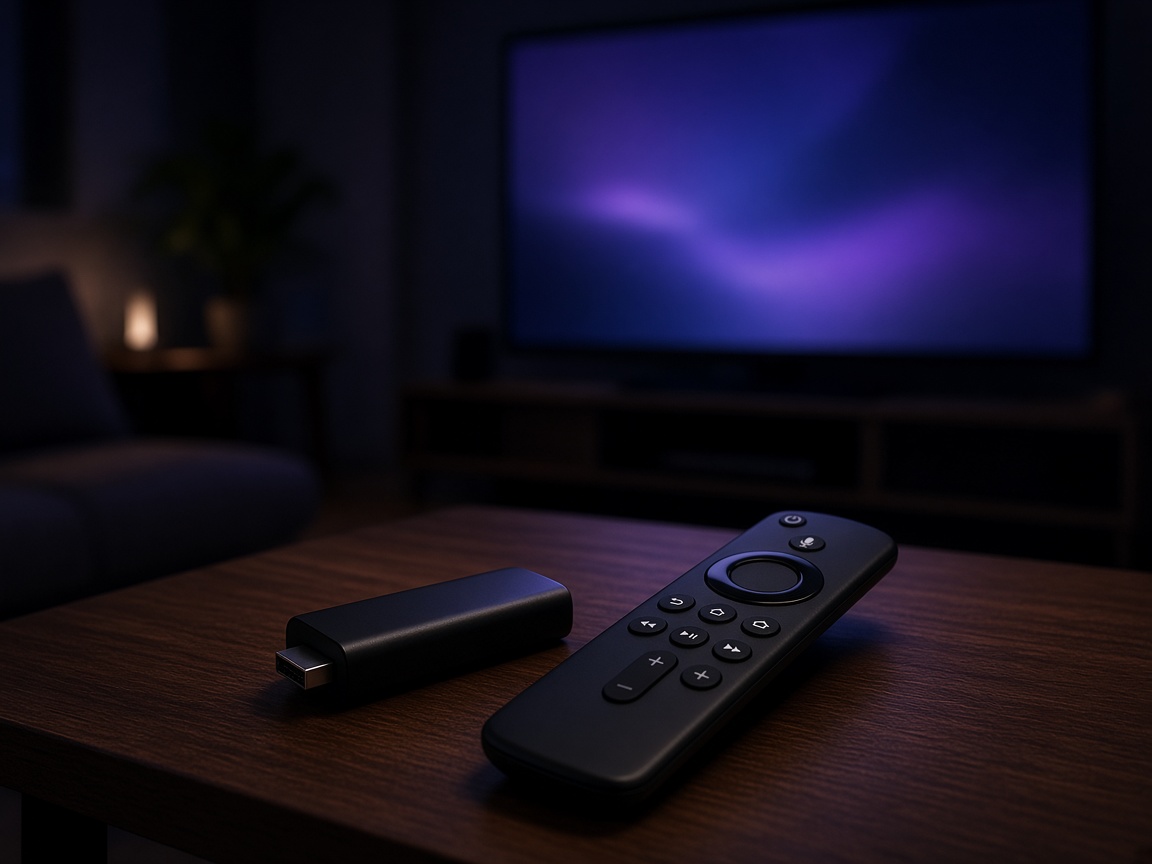
Fire TV Stick
-
Open Downloader
On the Fire TV home screen, find the search icon and type Downloader. Open the app from AFTVnews. If you already have it, skip to step 3.
-
Allow unknown apps
Open Downloader. If it asks to install unknown apps, choose Settings, turn on Allow from this source, then return to Downloader.
Fire OS 8. Search Developer Options. If that menu is empty, open My Fire TV → About → click the Fire TV Stick name seven times. Then Developer Options → Install unknown apps → turn Downloader on.
Vega OS. New Fire TV Stick 4K Select models cannot sideload apps. Use a Fire OS stick or an Android box instead.
-
Install iMPlayer
In Downloader, enter this code and tap Go.
3694157
When the download finishes, choose Install, then Open. Allow every pop-up. Do not type anything into the app.
-
Photograph the Device ID
The Device ID sits in the bottom right of the iMPlayer screen. Send a clear photo of that corner. We finish setup on our side.
Guide 2
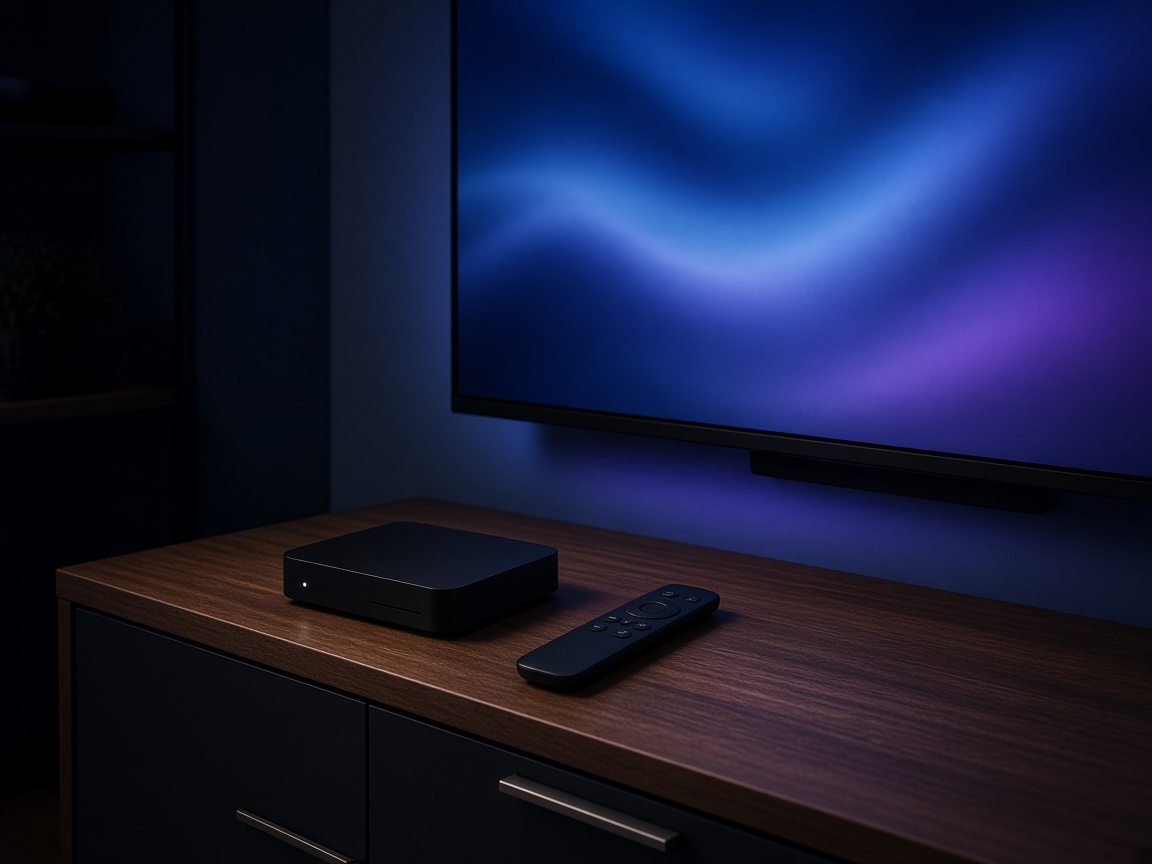
Android TV box
-
Open a browser on the box
Go to the same download link used on Fire TV. If the file does not start, paste the link into the browser address bar.
-
Install and allow prompts
Choose Install, then Open. Allow every permission screen. Do not add a playlist or enter a username or password.
-
Send the Device ID
Photograph the Device ID in the bottom right corner, same as Fire TV step 4, and send it in a ticket.
Guide 3
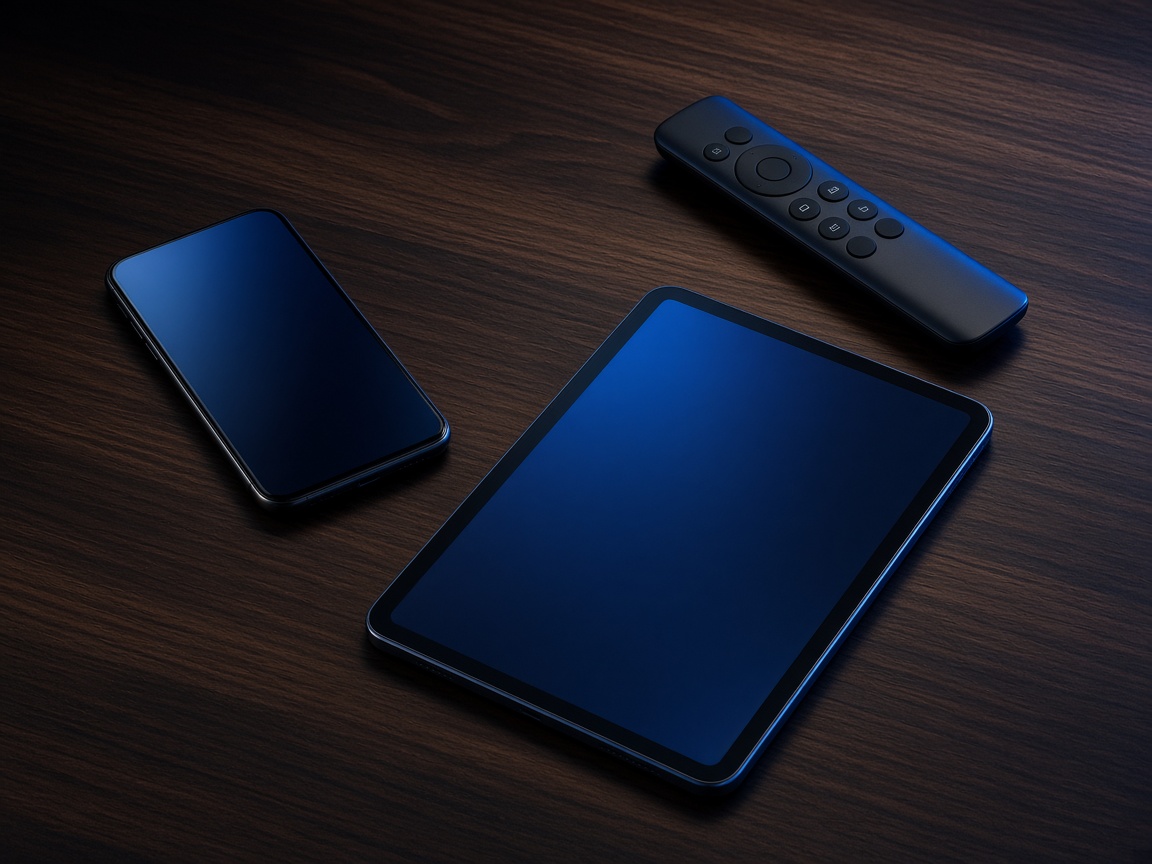
Android phone or tablet
-
Download iMPlayer
Open the download link on the phone. Allow installs from that source if Android asks.
-
Leave the login fields empty
Open the app and allow every prompt. We do not ask you to type service details into iMPlayer.
-
Photograph the Device ID
Find it in the bottom right corner and send the photo in a ticket so we can finish the line.
Smart TV or Apple TV. Those sets do not run this sideload. Use a Fire TV Stick or Android box on the same screen, then follow the guide above.
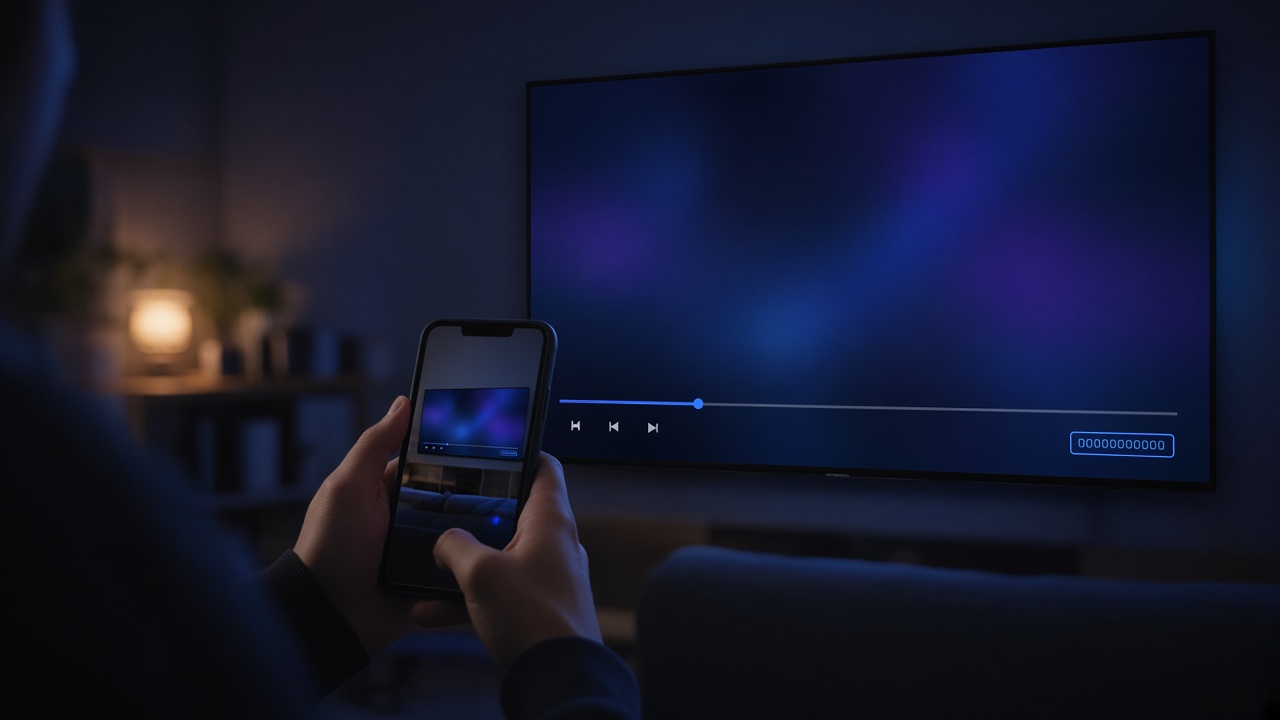
Last step
Send the Device ID photo
Open iMPlayer. Look at the bottom right corner. Take a clear photo of the TV or phone that shows that ID, then send it in a ticket. We use it to finish setup on our side.